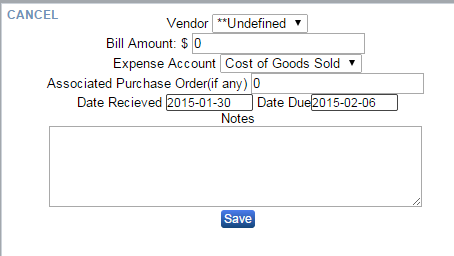
Creating a New Expense
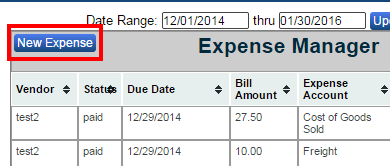
In the “Expense Manager” window click the “New Expense” button in the top left corner. From here you can assign a vendor and a bill amount. Click in the “Expense Account” field and use your arrow keys or mouse to select cost of goods sold, freight, or shipping. Enter an “Associated Purchase Order” if applicable. Click in the “Date Received” and the “Date Due” field to select dates via the pop up calendar. Enter any extra information in the “Notes” field and when finished hit the “Save” button at the bottom.